









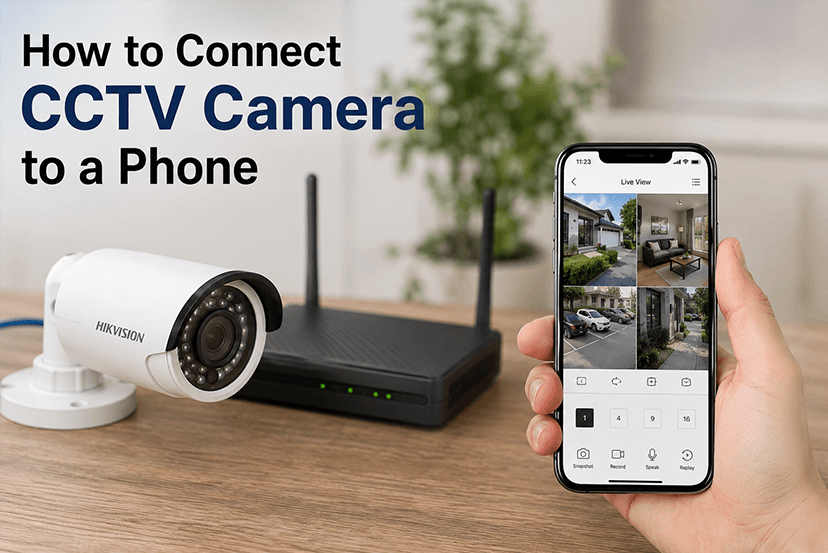
CCTV cameras have become an important part of home, office, shop, warehouse, and commercial security systems. With modern IP and Wi-Fi-enabled CCTV cameras, you can monitor live footage, receive motion alerts, record videos, and even communicate through two-way audio directly from your smartphone.
Connecting a CCTV camera to a phone may seem complicated at first, but most modern systems can be configured in a few simple steps. You generally need a compatible CCTV camera, a stable internet connection, the manufacturer’s mobile application, and a smartphone.
This guide explains how to connect a CCTV camera to a phone, including both Wi-Fi and wired CCTV setups, as well as troubleshooting tips and important factors to consider when purchasing a camera.
Why Connect a CCTV Camera to a Phone?
Connecting your CCTV camera to your smartphone gives you convenient remote access to your security system. Instead of being physically present near the camera or DVR, you can check your property from almost anywhere with an internet connection.
Some major benefits include:
- Remote live monitoring: View live CCTV footage directly on your phone.
- Motion notifications: Get alerts when movement is detected.
- Video playback: Access previously recorded footage from compatible systems.
- Two-way communication: Speak with people near the camera if two-way audio is supported.
- Remote control: Certain cameras allow pan, tilt, zoom, or other functions through the app.
- Multiple-camera viewing: Monitor cameras installed at different locations through one application.
- Improved security: Quickly check suspicious activity when you are away.
What You Need to Connect CCTV Camera to a Phone
Before starting the setup, make sure you have the following:
- CCTV camera: A Wi-Fi, IP, or compatible analog camera system.
- Smartphone: Android or iOS device.
- Internet connection: A stable Wi-Fi or broadband connection is recommended.
- Mobile application: Install the official app recommended by the CCTV manufacturer.
- Camera login details: You may need the device ID, username, password, QR code, or verification code.
- DVR/NVR: Required when your CCTV cameras are connected through a recorder rather than directly to the internet.
- Power supply: Ensure the camera or recorder is properly powered.
How to Connect a Wi-Fi CCTV Camera to a Phone
Wi-Fi CCTV cameras are generally among the easiest cameras to connect to smartphones. Follow these steps.
Step 1: Power On the CCTV Camera
Connect the camera to its recommended power adapter and switch it on. Wait for the camera to complete its startup process.
Some cameras use indicator lights or voice prompts to show that they are ready for configuration.
Step 2: Download the Official CCTV App
Search for the manufacturer’s official mobile application on the Google Play Store or Apple App Store.
Install the correct application and create an account if required. Avoid downloading unknown third-party applications, particularly when they request unnecessary permissions.
Step 3: Connect Your Phone to Wi-Fi
Connect your smartphone to the Wi-Fi network that you want the CCTV camera to use.
Many Wi-Fi cameras work most reliably when the camera and phone are initially connected through the same network during setup.
Step 4: Add the CCTV Camera to the App
Open the CCTV application and look for an option such as:
- Add Device
- Add Camera
- Set Up Device
- Device
- Scan QR Code
Select the appropriate option.
Step 5: Scan the Camera’s QR Code
Many modern CCTV cameras have a QR code printed on the device, packaging, or setup label.
Use the app’s scanning function to scan this QR code. Depending on the model, you may instead need to enter the device serial number or ID manually.
Step 6: Enter the Wi-Fi Details
Select your Wi-Fi network and enter the correct password.
The camera will attempt to connect to the network. Keep the camera within a reasonable range of the Wi-Fi router during the initial setup.
Step 7: Create or Enter the Camera Password
For security, you may be asked to create a device password or enter the default credentials.
Always change the default password if the camera is using one. Use a strong, unique password rather than a simple combination that can be easily guessed.
Step 8: Complete the Setup
Once the camera connects successfully, it should appear in the mobile application.
Tap the camera name to open the live-view screen. You can now monitor the camera from your smartphone.
Also Read: Top 10 best CCTV Camera Manufacturers in India 2026
How to Connect a CCTV Camera to a Phone Through DVR or NVR
If your CCTV system uses multiple wired cameras connected to a DVR (Digital Video Recorder) or NVR (Network Video Recorder), the process is slightly different.
Step 1: Connect the Cameras to the DVR/NVR
Connect your CCTV cameras to the appropriate ports on the DVR or NVR. Ensure that every camera receives adequate power and that the connections are secure.
Step 2: Connect the Recorder to the Internet
Use an Ethernet cable to connect the DVR/NVR to your router or network switch.
A stable internet connection is important for remote viewing.
Step 3: Install the Manufacturer’s App
Download the mobile application recommended for your DVR/NVR from the official app store.
Create an account if required.
Step 4: Find the Device ID or QR Code
Open the DVR/NVR’s settings menu and locate its device information.
Depending on the system, you may find:
- QR code
- Serial number
- Device ID
- Cloud ID
- Verification code
Step 5: Add the DVR/NVR to Your Smartphone
Open the mobile application and select Add Device.
Scan the QR code or enter the device information manually.
Step 6: Enter Login Credentials
Enter the required username and password. Make sure these credentials match the DVR/NVR settings.
Step 7: View the Cameras
Once the recorder is successfully linked, the connected CCTV cameras should appear in the application.
You can select individual cameras or view multiple camera feeds simultaneously if your system supports it.
How to Connect CCTV Camera to Phone Without Wi-Fi?
Not every CCTV camera requires Wi-Fi at the camera itself. Wired CCTV systems can use Ethernet cables to connect cameras to an NVR, while the NVR connects to the internet through a router.
For remote smartphone access, however, the recorder or camera generally needs some form of internet connectivity.
If there is no internet connection at the location, you may still be able to view locally recorded footage through the DVR/NVR, but remote monitoring from another location may not be available.
How to Connect CCTV Camera to Phone Using Mobile Data
Once your CCTV camera or DVR/NVR has been configured for remote access, you can usually view the footage using your phone’s mobile data.
The basic process is:
- Connect and configure the CCTV system to the internet.
- Add the camera or DVR/NVR to its official mobile app.
- Verify that remote viewing works while your phone is connected to Wi-Fi.
- Turn off Wi-Fi on your phone.
- Enable mobile data.
- Open the CCTV application.
- Select the camera and check the live feed.
If remote viewing does not work over mobile data, check whether remote access or cloud/P2P functionality is enabled on your CCTV system.
How to Connect Multiple CCTV Cameras to One Phone
Many CCTV applications allow multiple cameras to be managed from one smartphone.
If all cameras are connected to a compatible DVR/NVR, simply add the recorder to the mobile app. The application can then display the connected cameras.
For independent IP or Wi-Fi cameras, add each compatible camera individually to the same account or application.
This can be particularly useful for:
- Homes
- Retail stores
- Offices
- Warehouses
- Schools
- Restaurants
- Construction sites
- Small businesses
Common Problems When Connecting CCTV to a Phone
Sometimes the CCTV camera may not connect to your smartphone on the first attempt. The following are some common problems and solutions.
Camera Not Showing in the App
Check whether the camera is powered on and whether the mobile application supports your specific camera model.
Restarting both the camera and application can also resolve temporary connection problems.
Wi-Fi Connection Failed
Check the Wi-Fi password and make sure the camera is within range of the router.
Some cameras support only certain Wi-Fi bands during setup, so check the manufacturer’s specifications.
QR Code Is Not Scanning
Clean the camera lens or QR code area and ensure sufficient lighting.
You can also increase the phone’s screen brightness if the QR code is displayed on another device.
CCTV Works on Wi-Fi but Not on Mobile Data
This may indicate that remote access has not been configured correctly.
Check the camera or DVR/NVR’s internet, cloud, P2P, or remote-access settings. Also verify that the mobile application has the required permissions.
CCTV Camera Shows Offline
Check:
- Internet connectivity
- Power supply
- Ethernet cable
- Wi-Fi signal
- Router status
- Device login credentials
- App status
Restarting the router and CCTV equipment can sometimes restore the connection.
Security Tips for CCTV Camera Connected to Phone
A CCTV camera connected to the internet should be secured properly because unauthorized access can compromise your privacy.
Follow these security practices:
Change Default Passwords
Never continue using easily identifiable default credentials. Create a strong password containing a combination of letters, numbers, and special characters where supported.
Use the Official App
Download the CCTV manufacturer’s application from a trusted app store. Avoid unofficial applications that could expose your account or device information.
Keep Firmware Updated
Manufacturers periodically release firmware updates to improve performance and address security vulnerabilities. Check for updates through the official device or application interface.
Secure Your Wi-Fi Network
Use a strong Wi-Fi password and modern wireless security standards supported by your router and camera.
Enable Two-Factor Authentication
If the manufacturer’s application supports two-factor authentication, enable it for additional account protection.
Review Connected Devices
Periodically check which smartphones, users, or accounts have access to your CCTV system and remove access that is no longer required.
How to Choose a CCTV Camera for Mobile Monitoring
If you are planning to buy a CCTV camera that can be connected to your smartphone, consider the following specifications.
Camera Resolution
Resolution determines the level of detail captured by the camera. Common options include Full HD and higher-resolution models.
For areas where identifying faces, vehicles, or other details is important, choose a resolution suitable for the required viewing distance and environment.
Night Vision
If the camera will operate at night, look for infrared or other low-light capabilities.
Wi-Fi or Wired Connectivity
Wi-Fi cameras are convenient for locations where running cables is difficult. Wired IP cameras can provide a stable network connection and may be preferable for larger installations.
Storage
Check whether the camera supports:
- MicroSD card storage
- NVR storage
- Cloud storage
- Network storage
Choose a storage option based on your recording requirements.
Motion Detection
Motion detection can help reduce unnecessary recordings and send alerts when activity is detected.
Two-Way Audio
If you want to communicate through the camera, choose a model with a built-in microphone and speaker.
Weather Resistance
For outdoor installation, check the camera’s IP rating and ensure it is designed for the environmental conditions at the installation location.
Mobile App Compatibility
Before purchasing, verify that the CCTV camera supports Android and/or iOS and that the manufacturer’s app provides the remote monitoring features you need.
CCTV Camera Buying Checklist
| Feature | Why It Matters |
| Resolution | Determines image clarity and detail |
| Night Vision | Helps monitor areas in low-light conditions |
| Wi-Fi/Ethernet | Determines how the camera connects to the network |
| Storage | Defines how recordings are saved |
| Motion Detection | Helps identify movement and trigger alerts |
| Two-Way Audio | Enables communication through the camera |
| Remote Viewing | Allows monitoring through a smartphone |
| Weather Resistance | Important for outdoor installations |
| Mobile App | Provides smartphone access and controls |
| Password Security | Helps protect the camera from unauthorized access |
Benefits of Smartphone-Connected CCTV Cameras
A smartphone-connected CCTV system offers more than simple video recording. It provides a convenient way to stay informed about activity at your property.
Real-Time Monitoring
Check your property from virtually anywhere with an internet connection.
Instant Alerts
Compatible systems can send notifications when motion or other events are detected.
Remote Playback
Review recorded footage without physically accessing the DVR or memory card.
Easy Management
Manage cameras, recording settings, notifications, and other supported functions through a mobile application.
Better Accessibility
Business owners and homeowners can monitor multiple locations without being physically present at each site.
Final Thoughts
Learning how to connect a CCTV camera to a phone is relatively straightforward when you have a compatible camera, a reliable internet connection, and the correct manufacturer’s application. Wi-Fi cameras can often be configured directly through a smartphone, while wired CCTV systems generally connect through a DVR or NVR.
Before buying a CCTV camera, consider important specifications such as resolution, night vision, storage, connectivity, motion detection, weather resistance, and smartphone compatibility. Most importantly, secure your system with strong passwords, updated firmware, and trusted applications.
If you are looking for CCTV cameras for home, office, shop, warehouse, or commercial security, choose a model based on the installation environment, coverage area, recording requirements, and mobile monitoring features. The right CCTV system can provide reliable surveillance while making security monitoring much more convenient through your smartphone.
Frequently Asked Questions
Can I connect any CCTV camera to my phone?
No. The CCTV camera or its DVR/NVR must support mobile or remote access. Check the manufacturer’s specifications and compatible mobile application before purchasing.
Can I connect a CCTV camera directly to my phone?
Some Wi-Fi and smart CCTV cameras can be configured directly through a smartphone application. Traditional analog cameras usually require a DVR or compatible recorder.
Can I watch CCTV from my phone when I am away from home?
Yes, if the CCTV system supports remote viewing and is connected to the internet. You also need the manufacturer’s compatible mobile application and properly configured remote access.
Can I connect multiple CCTV cameras to one mobile phone?
Yes. Depending on the application and system, you can connect multiple cameras individually or access multiple cameras through a single DVR/NVR.
Does CCTV require Wi-Fi to work?
No. Wired CCTV systems can operate through cables and a DVR/NVR. However, internet connectivity is generally required for remote smartphone monitoring from outside the local network.
Why is my CCTV camera offline on my phone?
The camera may be offline because of a power failure, weak Wi-Fi, internet problems, disconnected Ethernet cables, incorrect credentials, or an issue with the application or remote-access service.
Can CCTV work with mobile data?
Yes. Once remote access has been correctly configured, many CCTV systems can be viewed using your smartphone’s mobile data connection.